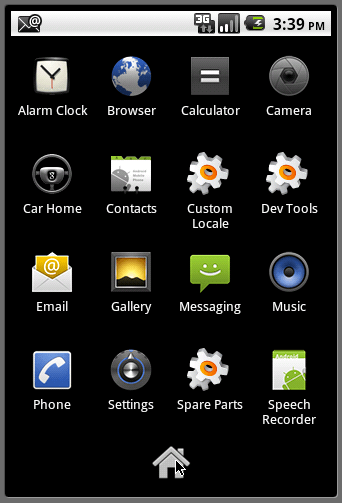
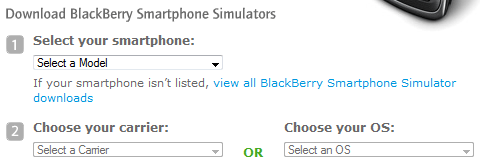
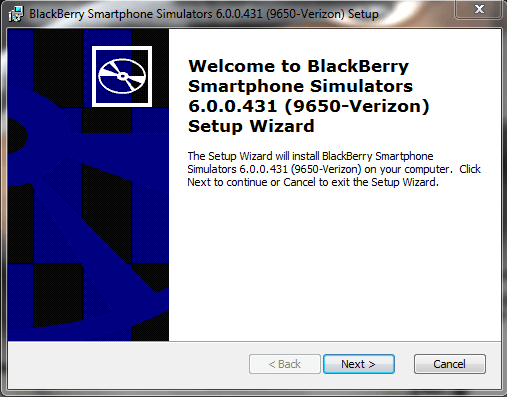
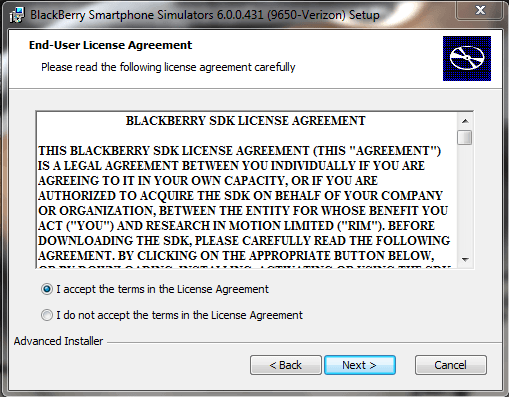
Whether you are wanting to try out Android before actually purchasing a phone, or are just interested in the capabilities of the Android mobile OS, installing Android locally on your PC will give you a pretty good idea of what Android has to offer.
Previously, we posted tutorials on how to install Mac Snow Leopard on PC, and even install a Nintendo 64 emulator on PC. Here, we will guide you through the steps of installing a full fledged version of Android.

Prerequisites
As you may have guessed, Android does require a framework to run. So, if you do not already have Java installed on your computer, head on over to the Java homepage and download the latest release. After the download is complete, proceed to install Java onto your PC. A restart after installation may be in order.

After you’re all good to go with Java, the next step is to download the actual Android SDK (software developers kit). You can download it straight from the Google Android website.
Installing Android
Once the Android SDK download is complete, unzip the files and run the setup exe. It should be titled, SDK Setup.exe.

Once the installation is started, the installer will check Android servers for any available packages and updates.

**Important Note**
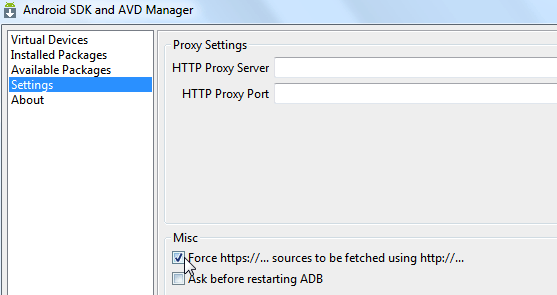
You may get an SSL error during installation. If you do, click the Settings tab of the Android SDK and AVD Manager window and uncheck the option Force https://… Click the OK button and reopen the setup. It should work properly this time, without error.

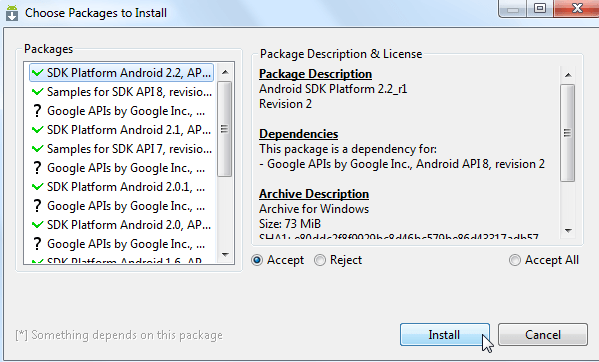
Still during installation, the Choose Packages to Install window will open. Here, you can decide and choose which exactly what you want to install. You will need to Accept the terms, and click Install to proceed with the rest of the SDK installation.

**Important Note**
By default, Android will have selected all SDK platforms and versions. You can choose to install all of the previous samples and APIs, but they are not necessary if you just want to try out Android. For most purposes, you will want to accept the latest version of Android for install, and reject the others.
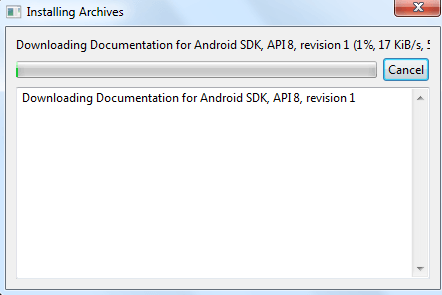
The Installing Archives download window will pop up, letting you know of the progress of your Android installation.

Setting Up Android
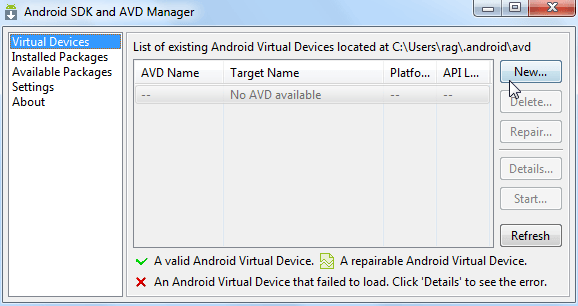
Once download and installation of the Android SDK is complete, you can get started with setting up your Android simulator. Select Virtual Devices from the left side menu of the Android SDK and and AVD Manager window, and click the New button.

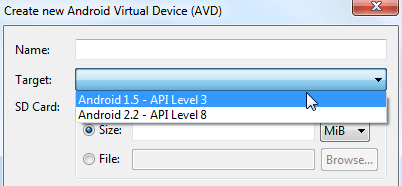
The Create new Android Virtual Device window will now open. Type in a name for your Android device, and select the version of Android that you’d like to use from the drop down target menu. Most likely, there will only be one version of Android to choose from in the target menu, if you only chose to download the latest version.

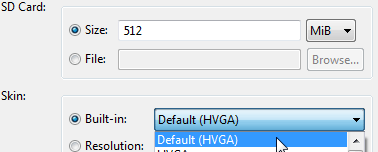
You will also need to enter a SD card size and select a screen size from the skin drop down menu. On an actual android phone, the SD card size would simply be the capacity of the SD card that you have inserted into the phone. Here, the emulator will simply create an IMG file to serve as a “virtual SD card”.

Once you have all of your settings selected, click the Create AVD button.

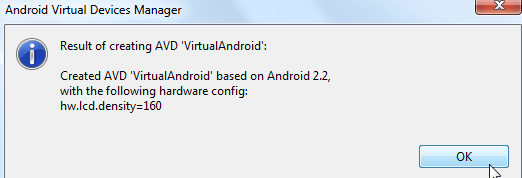
Android SDK will give you a confirmation prompt if you have done everything correctly.

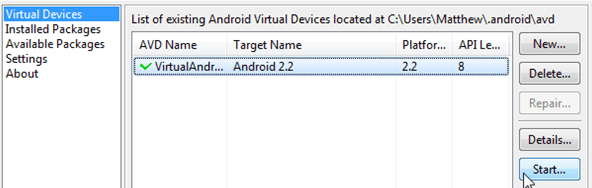
Now, it’s time to boot up your virtual Android device for the first time. Select your virtual Android machine under the AVD Name window, and click the Start… button.

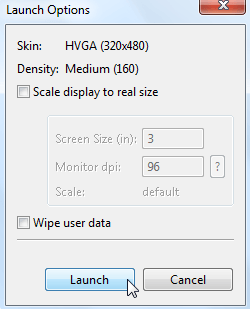
A Launch Options menu will appear, where you can scale the display to real size, and make adjustments to best fit your monitor or screen. Click the Launch button.

Now, you may need to wait a couple of minutes for Android to load, depending on the speed of your PC. Once it does load, you will be ready to go.

You’ve got the emulated phone screen, you’ve got the emulated dial pad, now you can test out all of Androids features from your PC!

Previously, we posted tutorials on how to install Mac Snow Leopard on PC, and even install a Nintendo 64 emulator on PC. Here, we will guide you through the steps of installing a full fledged version of Android.

Prerequisites
As you may have guessed, Android does require a framework to run. So, if you do not already have Java installed on your computer, head on over to the Java homepage and download the latest release. After the download is complete, proceed to install Java onto your PC. A restart after installation may be in order.

After you’re all good to go with Java, the next step is to download the actual Android SDK (software developers kit). You can download it straight from the Google Android website.
Installing Android
Once the Android SDK download is complete, unzip the files and run the setup exe. It should be titled, SDK Setup.exe.

Once the installation is started, the installer will check Android servers for any available packages and updates.

**Important Note**
You may get an SSL error during installation. If you do, click the Settings tab of the Android SDK and AVD Manager window and uncheck the option Force https://… Click the OK button and reopen the setup. It should work properly this time, without error.
Still during installation, the Choose Packages to Install window will open. Here, you can decide and choose which exactly what you want to install. You will need to Accept the terms, and click Install to proceed with the rest of the SDK installation.
**Important Note**
By default, Android will have selected all SDK platforms and versions. You can choose to install all of the previous samples and APIs, but they are not necessary if you just want to try out Android. For most purposes, you will want to accept the latest version of Android for install, and reject the others.
The Installing Archives download window will pop up, letting you know of the progress of your Android installation.
Setting Up Android
Once download and installation of the Android SDK is complete, you can get started with setting up your Android simulator. Select Virtual Devices from the left side menu of the Android SDK and and AVD Manager window, and click the New button.
The Create new Android Virtual Device window will now open. Type in a name for your Android device, and select the version of Android that you’d like to use from the drop down target menu. Most likely, there will only be one version of Android to choose from in the target menu, if you only chose to download the latest version.
You will also need to enter a SD card size and select a screen size from the skin drop down menu. On an actual android phone, the SD card size would simply be the capacity of the SD card that you have inserted into the phone. Here, the emulator will simply create an IMG file to serve as a “virtual SD card”.
Once you have all of your settings selected, click the Create AVD button.
Android SDK will give you a confirmation prompt if you have done everything correctly.
Now, it’s time to boot up your virtual Android device for the first time. Select your virtual Android machine under the AVD Name window, and click the Start… button.
A Launch Options menu will appear, where you can scale the display to real size, and make adjustments to best fit your monitor or screen. Click the Launch button.
Now, you may need to wait a couple of minutes for Android to load, depending on the speed of your PC. Once it does load, you will be ready to go.
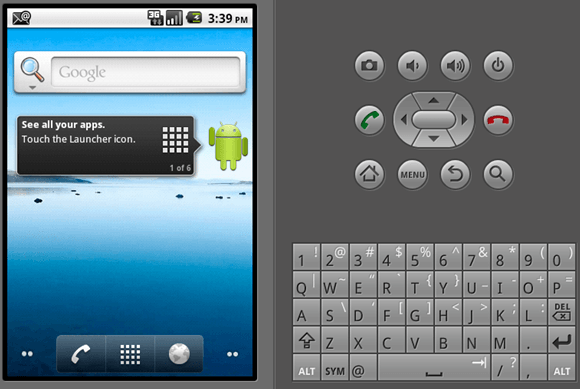
You’ve got the emulated phone screen, you’ve got the emulated dial pad, now you can test out all of Androids features from your PC!